
Servers, instances and databases that are not sending data through the proxy anymore are displayed in a grey color in the monitoring tree, as shown below:
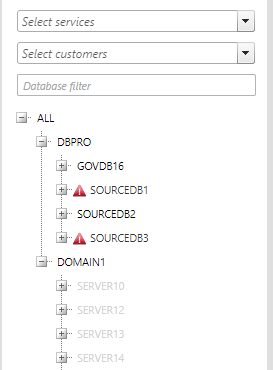
These nodes can still cause watchdog alerts, so sometimes it's useful to permanently remove them from the user interface. Note that if the instance is still listed in the proxy configuration, the instance (along with its databases) will be re-added into the UI as soon as there is incoming data, so you should always remove instances from the proxy first and only then from the UI.
To remove a database, do the following steps:
- Go to Settings > Metadata > Databases.
- Click on the Delete icon (X) on the left.
- If the database hasn't sent any data in the last few intervals, the database is deleted from the SQL Governor UI. If you get an error message, make sure the database isn't part of an instance still listed in the proxy and try again later.
To remove an instance, do the following steps:
- Go to Settings > Metadata > Instances.
- Click on the Delete icon (X) on the left.
- If the instance hasn't sent any data in the last few intervals, the instance and all its databases are deleted from the UI. If you get an error message, make sure the instance isn't still listed in the proxy and try again later.
To remove a server, do the following steps:
- Go to Settings > Metadata > Servers.
- Click on the Delete icon (X) on the left.
- If the server hasn't sent any data in the last few intervals, the server and all its instances and databases are deleted from the UI. If you get an error message, make sure any of the server's instances aren't still listed in the proxy and try again later.